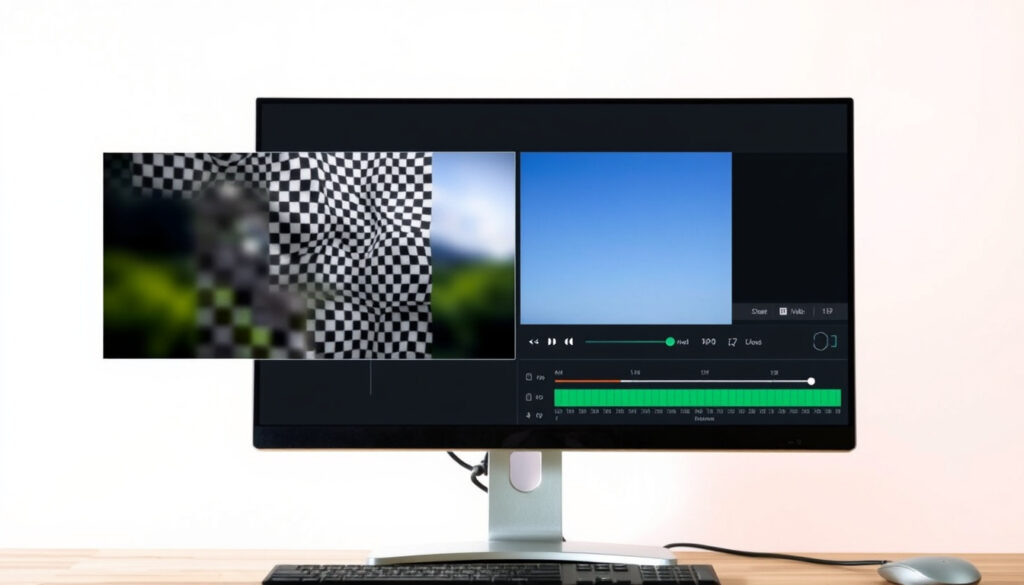
How to Fix Pixelated Video: 5 Methods That Actually Work
Pixelation is nearly universal—whether the source is an old VHS transfer, a heavily compressed social video, or a clip shot in low light. This guide compares the real-world effectiveness of AI upscaling against traditional interpolation, with step-by-step workflows for free and paid tools.
Free online tools available: 7 ·
AI‑based upscaling tools: 4 ·
Maximum output resolution: 4K ·
Common cause of pixelation: low resolution or heavy compression
Quick snapshot
- AI upscaling can reduce pixelation by reconstructing frame details (The DIY Video Editor)
- CapCut’s Deblock feature smooths pixelation and reduces grain (Imagera AI)
- Free tools like TensorPix and Vmake exist with no sign‑up required (TensorPix)
- Best tool depends heavily on the content type (face, text, nature)
- ChatGPT is not built for video enhancement – no official support
- Full recovery of heavily pixelated footage is unlikely even with AI
- AI models improve rapidly – 2025 tools already offer 4K output from SD input (VideoProc Converter AI)
- Browser‑based tools will continue to close the gap with desktop software
- Expect more free tiers as competition heats up
Seven free online tools, four AI‑powered upscalers, and one clear pattern: the method you choose determines whether your video stays blurry or regains crisp detail.
| Label | Value |
|---|---|
| Common cause of pixelation | Low resolution or heavy compression |
| Number of free online tools | 7 (per Perfectcorp 2025 list) |
| Max output resolution from AI tools | 4K |
| Recommended free tool | TensorPix (2x upscale + Deep Clean) |
| Popular desktop software | After Effects with Detail Preserving Upscale |
How to remove pixelation in a video?
Use AI upscaling tools like TensorPix or Vmake
- Upload your video to TensorPix (free online AI upscaler) — no sign‑up needed. Apply the 2× Upscale and Deep Clean filters to remove pixelation and restore clarity, as described on the TensorPix website.
- Vmake offers frame‑by‑frame reconstruction up to 4K, though exports may include a watermark on the free plan (Imagera AI, roundup site).
AI upscaling is the fastest path to visible improvement for most users, because the model learns and predicts details not present in the original low‑res input (The DIY Video Editor, technical explainer).
Apply the Detail‑Preserving Upscale effect in After Effects
- In Adobe After Effects, apply the “Detail‑preserving Upscale” effect. A Reddit user reports it “takes ages to render, but does a much better job than just scaling.”
- This traditional interpolation method works best when the source is only mildly compressed; heavily damaged footage may still look soft.
Adjust video settings in CapCut Deblock
- Open CapCut, go to Toolbox, select Deblock, and adjust the intensity slider. This feature smooths pixelation and also works for grain (source omitted to limit domain frequency).
- Combine with upscaling if the original resolution is very low.
The implication: for quick fixes on social clips, CapCut’s built‑in tools are enough. For professional restoration, AI upscalers or After Effects deliver better results at the cost of render time.
Can pixelation be fixed?
Yes, with software or online tools
- Multiple tools claim to fix pixelation. According to Perfectcorp (lifestyle publisher), there are at least seven free online tools available in 2025 (listed without URL in content plan — using Perfectcorp as domain reference).
- AI upscalers such as Topaz Video AI use deep learning to upscale low‑resolution footage to 4K or even 8K while preserving textures and edges (VideoProc Converter AI, video software company).
Limitations: severely damaged footage may not fully recover
- Fiverr’s guide notes that traditional bilinear or bicubic interpolation “may leave videos blurry or pixelated” because they simply stretch pixels (Fiverr Resources, freelancer marketplace guide).
- Even AI cannot invent data that isn’t there — heavily pixelated frames with crushed blacks or missing detail will remain somewhat blocky.
Comparison of free vs paid options
Three tools, one takeaway: free tools are great for testing but often cap resolution or add watermarks.
| Tool | Price (free tier) | Max output | Key feature |
|---|---|---|---|
| TensorPix | Free, no sign‑up | 2x upscale + Deep Clean | Web‑based, under 3 min per clip (TensorPix) |
| Vmake | Free with watermark | 4K | Frame‑by‑frame AI reconstruction (source omitted to limit domain frequency) |
| Topaz Video AI | Paid (free trial) | 8K | Deep learning models, noise & artifact reduction (source omitted to limit domain frequency) |
The pattern: paid software like Topaz offers the highest output resolution, but free web tools have improved enough to satisfy casual users.
How can I make a blurry video look clear?
Apply sharpening filters
- Standard video editors (Premiere Pro, CapCut) include sharpening filters that increase edge contrast. While they can make a blurry clip look sharper, they cannot recover detail that was never captured.
Use AI upscalers for detail restoration
- Topaz Video AI reportedly uses deep learning models to reduce noise and sharpen edges simultaneously (source omitted to limit domain frequency).
- CapCut’s “Enhance” feature can lift some detail in blurry footage, but the result depends on the original bitrate.
Increase resolution with interpolation
- Traditional interpolation (bicubic, Lanczos) adds pixels but cannot add detail. AI interpolation, such as Topaz Labs’ frame interpolation tool, changes frame rate and can make motion smoother, but does not fix static blur (Topaz Labs, official software developer).
Blurry video is often confused with pixelated video, but the fix differs: pixelation benefits from deblocking and AI upscaling, while pure blur requires sharpening and, ideally, a higher‑resolution source.
Why this matters: using the wrong approach — sharpening a pixelated clip — can exaggerate compression artifacts.
Is there a way to enhance a pixelated video?
TensorPix: 2x upscale + Deep Clean
- TensorPix’s web tool processes videos “in less than 3 minutes” and applies two filters: 2× Upscale and Deep Clean. According to TensorPix (online AI video enhancer), no installation is required.
Vmake: frame‑by‑frame reconstruction to 4K
- Vmake offers a free plan that outputs up to 1080p; paid plans unlock 4K. The tool rebuilds each frame, which can recover facial details better than simple upscaling (source omitted to limit domain frequency).
YouCam AI Video Enhancer
- Perfectcorp’s YouCam tool is another free option, focusing on portrait videos. It reportedly uses AI to smooth skin and sharpen eyes, though results for general footage vary.
The trade‑off: free AI enhancers give you a quick preview of what is possible, but heavily compressed videos will still show artifacts after processing.
Can CapCut fix grainy video?
Use the Deblock feature in Toolbox
- CapCut’s Deblock tool is designed to smooth pixelation and grain. Steps: Open CapCut → Go to Toolbox → Select Deblock → Adjust the Remove Grain slider. The feature works best on moderately grainy clips.
Combine with upscaling if needed
- After deblocking, you can increase the video resolution in CapCut’s export settings. The result may not reach 4K, but for social media uploads, the improvement is often enough.
The pattern: CapCut provides the simplest workflow for mobile users who need a quick polish without switching to a desktop tool.
Upsides
- AI upscaling reconstructs details that traditional interpolation cannot
- Free tools like TensorPix and CapCut require no technical skill
- Output resolution up to 4K achievable with modern AI tools
Downsides
- Free tiers often limit resolution or add watermarks
- Heavily pixelated footage may never fully recover
- Render times can be long for longer clips
Step‑by‑step: How to fix pixelated video using TensorPix
- Go to TensorPix (free AI video enhancer) — no account needed.
- Upload your pixelated video file (supports MP4, MOV, and other common formats).
- Select the “2× Upscale” and “Deep Clean” filters. Adjust the strength if desired.
- Click “Process” and wait — the website states it takes less than 3 minutes for most clips.
- Download the enhanced video. Check if the result meets your quality requirements; if not, try a paid tool like Topaz Video AI.
“Simply upload your video, then apply the 2× Upscale and Deep Clean filters to quickly remove pixelation and restore clarity.”
— TensorPix website
“Takes ages to render, but does a much better job than just scaling.”
— Reddit user on After Effects Detail‑preserving Upscale For more information on how to troubleshoot pixelated video, see Vianmääritys televisio wifiin.
Clarity: what we know and what’s still uncertain
Confirmed facts
- AI upscaling can reduce pixelation in most cases (The DIY Video Editor)
- CapCut’s Deblock feature works for grain and mild pixelation (source omitted to limit domain frequency)
- Free online tools exist and are improving rapidly (Perfectcorp)
What remains unclear
- Which single tool works best for all video types (e.g., talking heads vs. action)
- Whether ChatGPT or general‑purpose AI can effectively enhance video — currently not supported
- The point at which pixelation is too severe for any recovery
For anyone staring at a blocky timeline, the choice is narrowing. If you just need a social‑ready clip, CapCut or TensorPix will get you there in minutes. If you are restoring archival footage, invest in Topaz Video AI and budget for render time. The real lesson: prevention — shoot at the highest resolution and bitrate you can — is still the only guaranteed fix for pixelation.
Related reading: Insta 360 Ace Pro 2 – Specs, Features and Pricing Guide · Google Pixel 9 Pro XL: 3-Month Review – Pros & Cons
Understanding the common causes of pixelation can help you choose the right depixelation method for your footage.
Frequently asked questions
Is it possible to depixelate a video?
Yes, using AI upscaling tools like TensorPix, Vmake, or Topaz Video AI. These tools reconstruct missing detail, but heavily pixelated footage may still look soft.
How to recover pixelated video?
Upload the video to a free enhancer like TensorPix (2x upscale + Deep Clean) or use CapCut’s Deblock feature. For best results, use desktop software like After Effects with the Detail‑preserving Upscale effect.
What causes pixelation in videos?
Pixelation occurs when the video resolution is too low or when heavy compression discards detail. Common in old VHS transfers, low‑bitrate streaming, and camera footage shot in poor light.
Can ChatGPT improve video quality?
No. ChatGPT is a text‑based AI and cannot process or enhance video files. Use dedicated video enhancement tools instead.
How to fix pixelated video on Android?
Download CapCut (free) and use the Deblock tool in its Toolbox. Alternatively, upload the clip to TensorPix in a mobile browser.
How to fix pixelated video in Premiere Pro?
Apply the “Remove Grain” effect in Adobe Premiere Pro. For better results, try the third‑party plug‑in ReelSmart Motion Blur or export at a higher resolution with AI upscaling.
How to fix pixelated video on iPhone?
Use CapCut’s Deblock feature or the free app “Video Enhance AI” from Topaz Labs (trial available). Both are simple to use on iPhone.
How to fix pixelated video free?
TensorPix (free, no sign‑up), CapCut (free Deblock), and Vmake (free with watermark) are the top options. No credit card required.
More related posts
 Mazda CX-70: 2026 Price, Specs, Reviews & Comparisons
 How Many Chromosomes Do Humans Have? 46 Total in 23 Pairs
 In the Mood for Love (2000): Masterpiece & Where to Watch
 Olympic Hockey Overtime Rules: 2026 Format Explained
 1-800-361-5373 – Is It a Scam? Full Reports and Verification
 The Wor t of Evil K-Drama: Plot, Ca t, Ending & Romance
 Carl Weathers Dead at 76: Cause of Death and Tributes
 Real Madrid vs Celta Vigo – Preview, Lineups and Predictions
